
Common GIS Tools
Home
Clicking on Home widget map will zoom in or out so that default map extent can be viewed. This is very helpful when you zoom in or out too much and can’t see your map layers.
Current Location
On clicking the Current Location icon , symbol displays on the map, showing your current location. The map extent is updated to show the current location as the area of interest. The first time you visit Know your Tax or Property Tax Management Web Application, you will have the option to allow or disallow the browser from sharing your location data. If you have denied the permission and would like to change the settings, follow the below steps to enable location sharing on your browser.
- Open Chrome.
- At the top right, click More and then Settings.
- Under Privacy and security, click Site settings.
- Click Location under permissions. Turn Ask before accessing on or off.
Google Chrome
- In MS Edge, click on Tools (Menu bar or gear icon) and Internet Options.
- Click/tap on the Privacy tab.
- To allow websites to request your location, uncheck the Never allow websites to request your physical location box, click on OK
- Close and reopen MS Edge to apply.
Microsoft Edge
- Go to the Tools menu, then select Page Info.
- Select the Permissions tab.
- Change the setting for Share Location.
Firefox
Note: Current location is not supported in the Chrome via https due to Google’s privacy policy. Even in other browsers, the tool will only function when you let the website track your location.
Zoom In Zoom Out
Zoom In – You can double click on your map to zoom in at a fixed amount or can click on given on the map to zoom in. Also, you can use mouse scroll to achieve zoom in.
Zoom out – You can click on given on the map to zoom out. Also, you can use mouse scroll to achieve zoom out.
Search
Clicking on the Search option enables one to search any place on the world map. Enter the name of the place or a keyword to navigate the map to the desired location.
Measurement
The Measurement widget allows you to measure the Area of a Polygon or Length of a Line or find the Coordinates of a Point.
Basemap Gallery
Clicking on the Basemap Gallery option to choose your desired Basemap display from the different option provided in the list, to make your dashboard look more interesting and immersive.
Bookmark
The Bookmark widget stores a collection of Map View Extents (that is, spatial bookmarks) displayed in the app. It also allows you to create and add your own spatial bookmarks through configuration or at run time after the app starts.
Attribute Table
The Attribute Table widget displays a tabular view of Operational Layer's attributes. It displays at the bottom of your web app and can be opened, resized, or closed. You can use the widget's configuration window to specify the layer or layers to be included in the tabular view, the fields show, and whether the tabular view can be exported.
The Print widget connects the Web App with a Printing Service to allow the current view of the map to print.
- Select one of the following print options: Map Only, Text Only or Map and Text from the
 dropdown.
 - Click on Print icon to successfully print as per the selection.
- Add comments in the Notes textbox and click on Print button on the print page.
Property Tax Dashboard
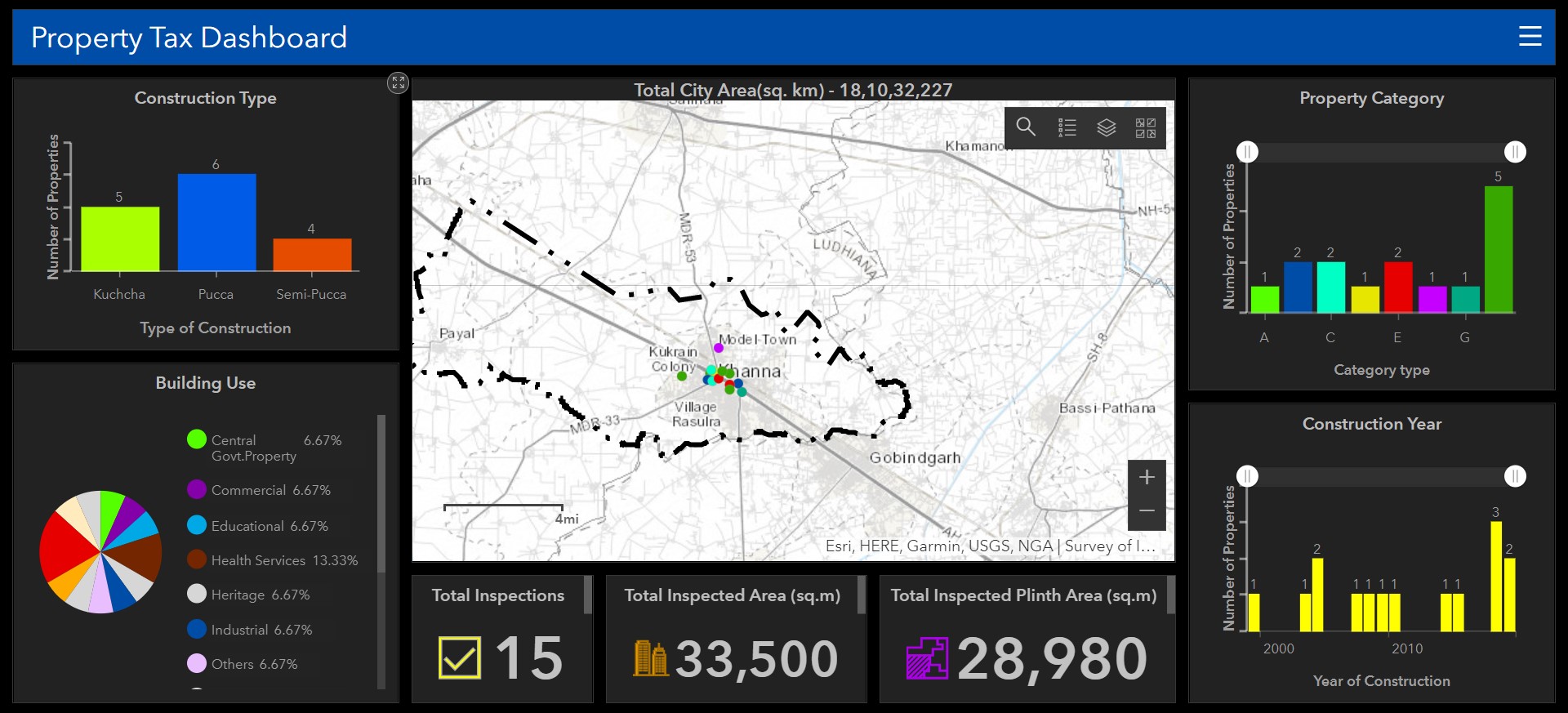
Property Tax Dashboard allows the user to get an overview of the property distribution. The dashboard shows the distribution of properties based on different factors of building use, category, year of construction, etc. The graphical and statistical elements will be auto-updated to consider data only from the current map view.
To access the dashboard, click on the Property Tax Dashboard from the Property Tax Solutions homepage.
Note: To know more about the Search, Legend, Layer List and Basemap Gallery tool please refer the topics Property Tax Management and Common GIS Tools
Property Tax Management
Property Tax Management is an all-in-one solution that can be used by the city administration. It uses data-driven maps to help the city administration calculate the tax amount for the properties under their jurisdiction using different methods. It makes use of the associated web map along with different map tools which provides the functionality to perform some visual analysis and calculate the tax.
To access the solution, click on the Property Tax Management solution from the Property Tax Solutions homepage.
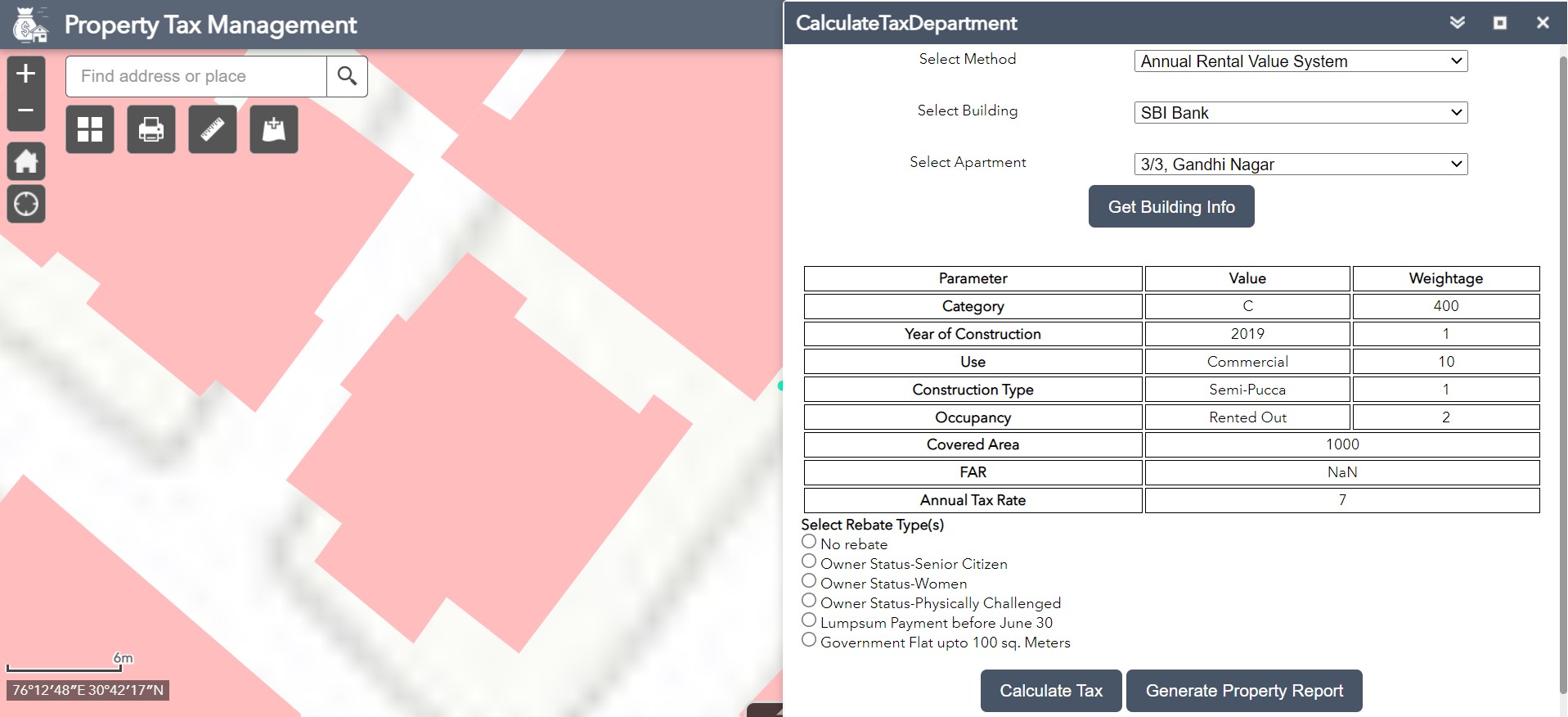
- Open the CalculateTaxDepartment widget in the application..
- Select the Method, Building and Apartment.
- Click on the Get Building Info. All the details relevant to the property gets displayed below.
- Select the Rebate Type(s), if applicable.
- Click on the Calculate Tax button. The tax amount will be displayed below.
- Click on the Generate Property Report button. A new window will open to show all the information of the selected property.
- Click on the Print button in the new window to print the property report.
CalculateTaxDepartment
The CalculateTaxDepartment widget  helps the city administration to calculate the tax amount for the properties under their jurisdiction using different methods and generate a report for the same.
- When the application starts, the Legend widget is automatically enabled.
- Clicking the Legend widget displays the Legend window.
- Click the close button to close the Legend window.
Legend
The Legend widget shows the symbology used to depict all the layers on the map.
- Click the Layer List widget in the app to display the layer list or table of contents window.
- If the checkbox on the left hand side of the Layer name is checked, click on the layer to show its legends (symbols).
- Click the three dots on the right side of a layer to display the layer menu with the following options
- Zoom To - Sets the map extent to the extent of the layer.
- Transparency - Sets the transparency for the layer.
- Enable Pop-up/Remove Pop-up - Enables or disables the pop-up for the feature layer. If a feature layer does not have a pop-up configured in the map, clicking Enable Pop-up shows all field values for the feature layer.
- Move up - Moves the layer one level up.
- Move down - Moves the layer one level down.
- Open attribute table - Opens the attribute table for the feature layer.
- Description/Show Item Details - Opens the service description or the item details page for the service or the item associated with the layer if available.
- Click the Control all layers button to control the behavior of the layers in the list. You can turn the layers on or off and expand or collapse the layers. Alternatively, you can use keyboard shortcuts to do the same. Press Ctrl and check the layer check box to turn the layers on or off in the same level. Press Ctrl and click the arrow to expand or collapse layers in the same level.
- Click the search button to find layers.
- Layers in the list are unavailable when zoomed out of their visible ranges.
- Click the close button to close the Layer List window.
Layer List
The Layer List widget allows the user to turn on/off the visibility of all the layers on the map.
Know your Tax
Know your Tax solution is similar to Property Tax Management. It uses data-driven maps to help citizens calculate the tax amount for their property using the particular method selected by the city municipality. It uses the associated web map along with different types of map tools which provides the functionality to perform some visual analysis and calculate the tax.
To access the solution, click on the Know your Tax solution from the Property Tax Solutions homepage.
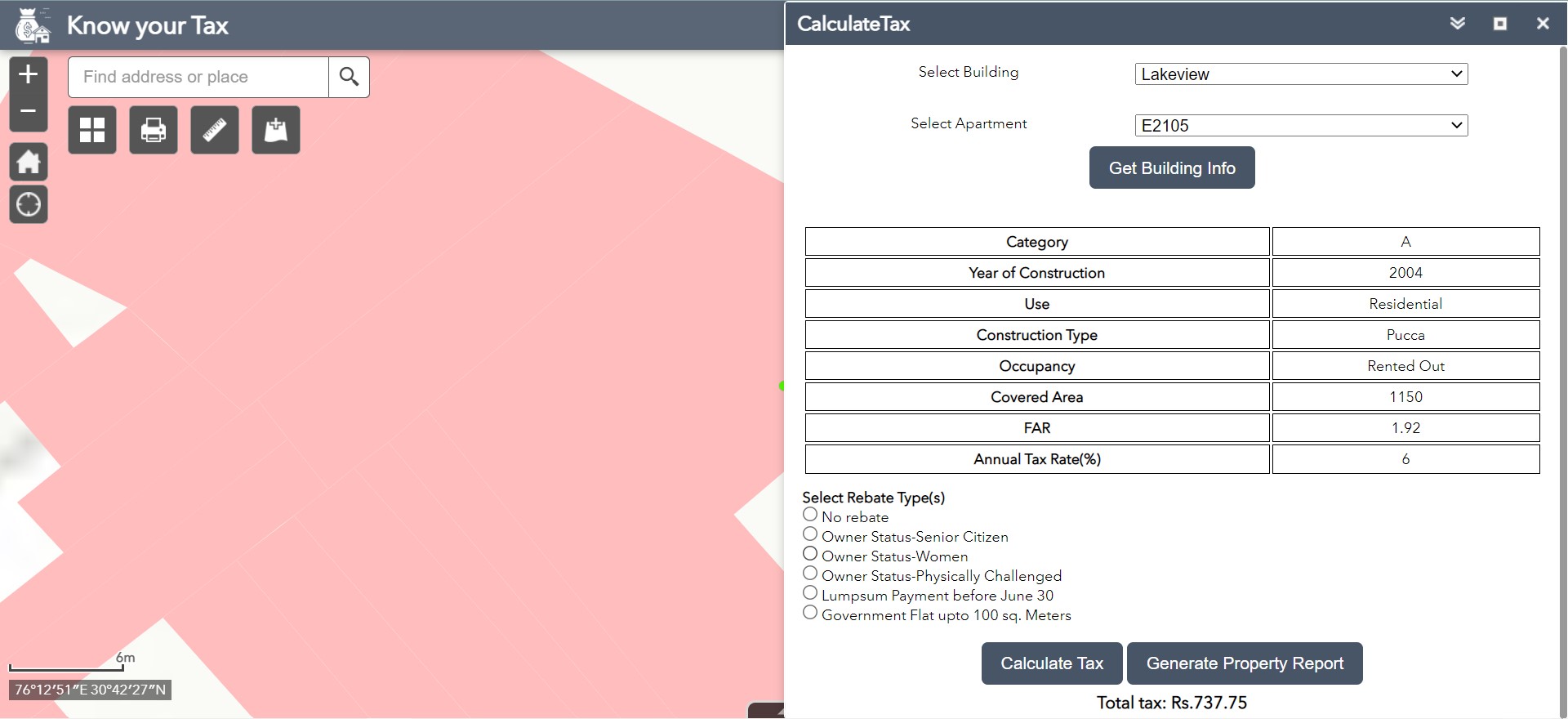
- Open the CalculateTax widget in the application..
- Select the Building and Apartment from the respective dropdowns.
- Click on the Get Building Info. All the details relevant to the property gets displayed below.
- Select the Rebate Type(s), if applicable.
- Click on the Calculate Tax button. The tax amount will be displayed below.
- To get the information about the property, click on the Generate Property Report button. A new window will open to show all the information of the selected property.
- Click on the Print button in the new window to print the property report.
CalculateTax
The CalculateTax widget helps the citizens to calculate the tax amount for their property using the particular method chosen by the city municipality. The property information should already be uploaded using the Field Survey form for the citizens to be able to calculate the tax.
Note: Refer Property Tax Management section for Legend and Layer List tool descriptions
Field Survey
Field Survey> form is used to collect the building and property information. Field workers can visit the building, provide required details in the form about the building. Once the details of the property are uploaded, the citizens and department workers can calculate the tax for the property using Know your Tax and Property Tax Management solutions respectively.
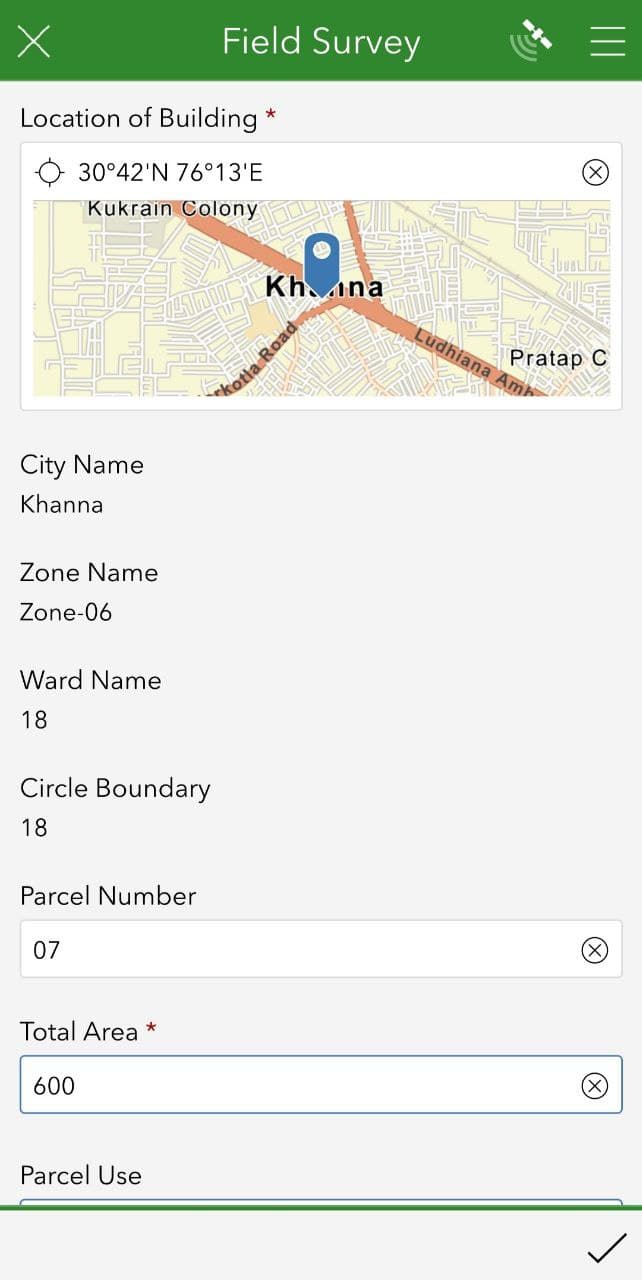
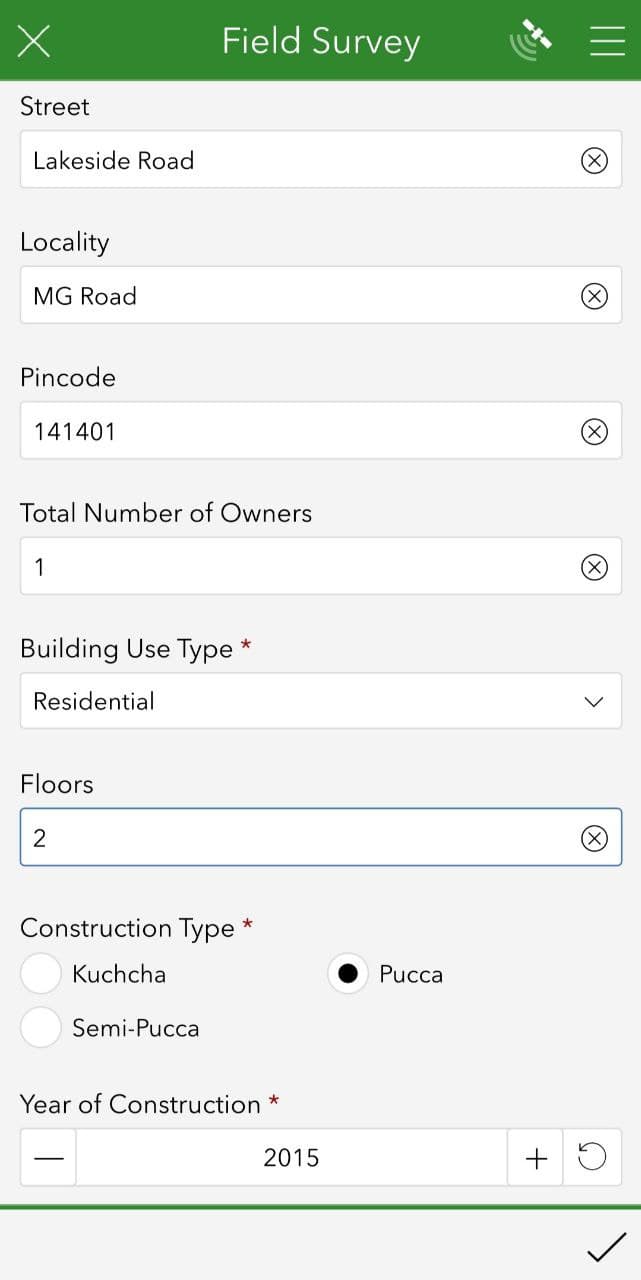
- Open the Field Survey form using ArcGIS Survey123
 mobile application.
 - Turn on your
 mobile GPS.
 - Set the location on the map.
- Information available in the GIS Layer will be auto-updated in the survey form.
- Capture the photograph of the field using
 your mobile device camera.
 - Submit the survey form.
Note: For accessing the survey from on your mobile download the ArcGIS Survey123 App from the Google Play Store.
Home